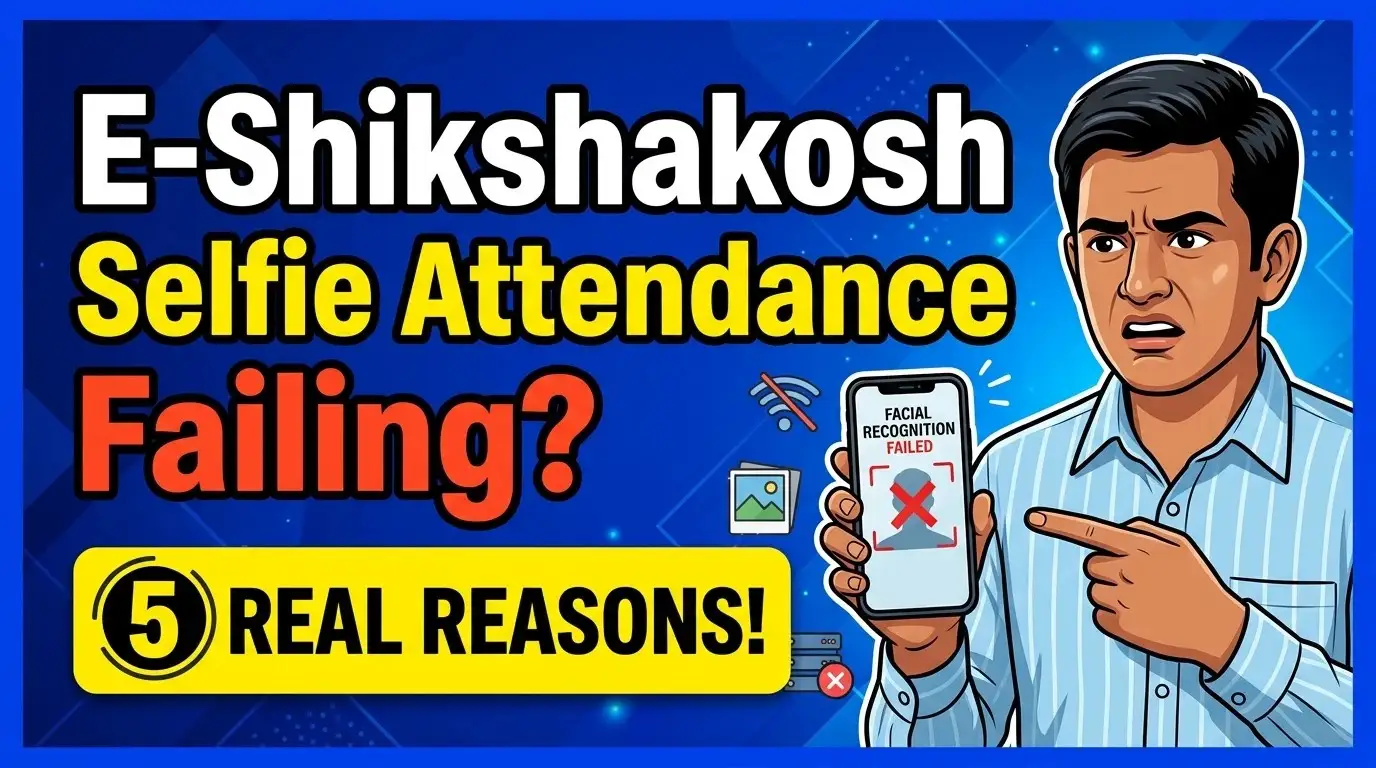
It is 8:58 AM. You are standing within the school premises. You have your ID ready, the GPS is green, but the selfie camera either freezes, shows a black screen, or repeatedly tells you that “Face Not Detected.” Every failed attempt feels like a step closer to a show-cause notice or a marked absence.
The E-Shikshakosh app is not just a digital register; it is a complex piece of software that relies on your phone’s RAM, the Bihar Education Department’s server capacity, and a sensitive “Liveness Detection” API. When these three don’t align, the selfie fails.
Here are the 5 real technical reasons your attendance is failing and exactly how to override them.
1. The “Liveness” Algorithm vs. Morning Shadows
The E-Shikshakosh app does not just take a photo; it performs a liveness check. It looks for micro-movements, skin texture, and depth to ensure you aren’t holding up a printed photograph of yourself.
The problem arises in the early morning light. If you are standing in a corridor with bright sunlight behind you, your face becomes a dark silhouette. The algorithm cannot find the “depth” markers on a dark face, so it rejects the capture.
The Fix: Always face the light source directly. If you are indoors, stand facing a window. The light must fall on your eyes and forehead. Avoid wearing heavy mufflers or caps that cast shadows over your eyes, as the liveness API specifically looks for “eye responsiveness” to confirm a human presence.
2. The “Token Conflict” in App Cache
If the app worked perfectly for a week and suddenly started failing today, the issue is likely “Cache Corruption.” Every time you log in, the app stores a temporary session token. If your internet flickered for a millisecond during your last logout or login, that token can become “stuck.”
The app tries to use an old, expired session to upload your new selfie. The server rejects it, but the app doesn’t tell you why—it just stays on the loading screen or gives a generic “Submission Failed” error.
The Fix: Go to your phone Settings > Apps > E-Shikshakosh > Storage. Tap Clear Cache. Note: Do not tap “Clear Data” unless you are prepared to re-enter your Teacher ID and Password. Clearing the cache flushes out the “stuck” session tokens and forces the app to create a fresh connection with the Patna servers.
3. RAM Throttling on Budget Devices
Many teachers use devices with 3GB or 4GB of RAM. At 9:00 AM, your phone might be running WhatsApp, Facebook, and various system updates in the background. The E-Shikshakosh selfie module requires a sudden “burst” of free memory to activate the camera and the face-matching AI simultaneously.
If your RAM is 90% full, the phone will “throttle” or kill the E-Shikshakosh camera process to prevent the phone from crashing. This results in the app simply closing or the camera screen remaining black.
The Fix: Before opening E-Shikshakosh, use the “Recent Apps” button (the square or three-line icon at the bottom of your screen) and Close All apps. For older devices, a quick restart at 8:45 AM is the most effective way to clear the RAM and ensure the selfie module has the “space” it needs to function.
4. The 8:55 AM “Server Congestion” Wall
This is not a fault with your phone, but a reality of the system. In Bihar, lakhs of teachers attempt to mark attendance between 8:50 AM and 9:00 AM. This creates a massive “handshake” request on the BEPC servers.
When the server is overloaded, it may accept your GPS location but fail to process the high-resolution selfie data. You might see a “Success” message, but because the photo never fully uploaded to the server, your status remains “Absent” in the HM’s login.
The Fix: The “Golden Window” for attendance is 8:35 AM to 8:45 AM. During this time, server traffic is significantly lower, and the data packet containing your selfie is processed instantly. If you must mark it closer to 9:00 AM, do not close the app immediately after seeing the green tick. Stay on the screen for 30 seconds to allow the background sync to complete.
5. Hidden “Privacy Manager” Permissions
On newer Android versions (especially on Redmi, Samsung, and Vivo phones), there is a secondary layer of security called “Privacy Manager” or “App Permissions” that can override your initial “Allow” click.
Sometimes, the app has permission to use the camera, but it does not have permission to “Display over other apps” or “Modify system settings.” If these are blocked, the selfie module cannot pop up over the dashboard to take your photo.
The Fix: Go to Settings > Apps > E-Shikshakosh > Permissions. Ensure that every single permission—Camera, Location, and Storage—is set to “Allow all the time” or “Allow while using the app.” Additionally, look for “Special App Access” in your settings and ensure E-Shikshakosh is allowed to operate without battery optimization.
The “Clean Reinstall” Protocol
If you have tried all the above and the selfie still fails, your app version may have a “fragmented update.” This happens when an update is installed over an old version and some files don’t align.
- Uninstall the E-Shikshakosh app completely.
- Restart your phone (this is a crucial, often skipped step).
- Reinstall the latest version from the Google Play Store.
- Log in and immediately go to the “My Attendance” section to see if your previous records are syncing.
By following this diagnostic path, you remove the “luck” factor from your daily attendance. The system is technical; your solution must be technical too. Understanding that a “Face Not Detected” error is often just a matter of lighting or RAM can save you from unnecessary administrative stress.