Your selfie attendance is failing on E-Shikshakosh. Before we fix it, confirm which of these is happening to you:
- The app takes the photo but shows “attendance failed” right after
- The camera opens and then freezes—you can’t even click the capture button
- The photo uploads successfully but your attendance still shows absent in the portal
- The app crashes completely the moment you try to open the camera
- Everything works but you get a “face not detected” or “liveness check failed” error
Find your problem fast: If your issue is #1 or #5 — go to Reason 1. If your issue is #2 or #4 — go to Reason 4. If your issue is #3 — go to Reason 5. If you get the error after the app worked fine yesterday — go to Reason 2 first, then Reason 3.
Reason 1: Lighting and Liveness Detection Are Not the Same Thing
Here is the thing. Most teachers think selfie attendance just takes a photo. It doesn’t. The E-Shikshakosh system uses AI-based liveness detection — which means the app isn’t just checking your face. It’s checking whether you’re a real, live person standing in front of the camera, not a printed photo.
This is why even a clear, well-lit selfie sometimes gets rejected.
The liveness check looks for micro-signals — slight movement, depth, eye responsiveness, and skin texture under varying light. When the lighting is uneven, too harsh, or too dim, the algorithm fails to read these signals properly. It doesn’t “see” a live person. It rejects the capture.
This is why it fails in the morning inside dimly lit classrooms. Fluorescent overhead lighting from one side creates shadows across your face. The liveness model gets confused. Your own face looks “flat” to it.
Fix it right now
Face a natural light source — a window, an open door, direct outdoor light. Don’t have light behind you. Have it in front of you. Remove your dupatta, cap, or anything partially covering your face. Hold the phone at eye level, not looking down at it. Try again.
If you’re getting “face not detected” even in good light, clean the front camera lens with your shirt. Seriously. That tiny lens collects dust and oil faster than you think, and it softens the image just enough to confuse the face detection model.
Reason 2: App Cache Is Holding Corrupted Face Data From a Previous Session
This one is sneaky. And this is why it’s the first thing you should try when the app suddenly starts failing after working fine for weeks.
Here is what happens. The E-Shikshakosh app caches certain session data locally—including fragments of previous camera sessions and temporary upload tokens. When this cache gets corrupted (due to a network drop mid-upload, an interrupted session, or a forced app restart), the next session starts with bad data already loaded. The app thinks it’s continuing a previous failed session. And it keeps failing.
The photo looks like it uploaded. The app says submitted. But the server never confirmed it because the token from the cached session had already expired.
Fix it in under 2 minutes
Go to your phone’s Settings → Apps → E-Shikshakosh → Storage → Clear Cache. Do NOT tap “Clear Data” unless you want to log in again. Just clear the cache.
Then force-close the app. Swipe it away from your recent apps. Wait 10 seconds. Reopen. Now try the selfie again.
Do this every 3–4 days if you’re using the app daily. It’s maintenance, not a fix. The cache fills up. You have to empty it.
Reason 3: Camera Permission Is Blocked — And Your Phone Is Hiding It
Every Bihar teacher reading this has one of three phones—Samsung, Redmi, or Realme. The camera permission path is different on all three. Most articles give you one generic Android path that works on none of them properly.
Here’s the exact path for each.
Samsung (One UI — Galaxy A, M, F series)
Go to Settings → Apps → E-Shikshakosh → Permissions → Camera → Allow only while using the app.
Here is the thing with Samsung: One UI has an extra layer called Privacy → Permission Manager that can override app-level permissions. If you’ve ever used a phone security or cleaner app, it may have revoked camera access silently.
So also check: Settings → Privacy → Permission Manager → Camera → E-Shikshakosh → Allow.
If you see “Denied” here — that’s your problem. Tap it and allow it. Done.
Redmi / MIUI (Note series, Redmi 9, 10, 12, etc.)
Xiaomi’s MIUI is the trickiest. MIUI has two separate permission systems that don’t always talk to each other.
Go to Settings → Apps → Manage Apps → E-Shikshakosh → Permissions → Camera → Allow.
But also — MIUI has a separate Security app with its own permission controls. Open the Security app → Permissions → Camera → Find E-Shikshakosh → set to Allow.
This is the step nobody else tells you. If you only fix it in Settings and not in the Security app, the camera will still be blocked the next time you restart your phone. MIUI resets it.
Realme (Narzo, C, GT series — ColorOS)
Go to Settings → Privacy → Permission Management → Camera → E-Shikshakosh → Allow.
Realme ColorOS also has a “Freeze Apps” feature in the battery settings that can kill background camera access. Check: Settings → Battery → App Quick Freeze → make sure E-Shikshakosh is NOT in the frozen list.
If it’s there, unfreeze it. That’s probably why your camera opens but instantly closes.
Reason 4: Low RAM Is Crashing the Camera Module Mid-Capture
This is why the app crashes the moment you try to take the selfie. Not before. Not after. Right at capture. And this is why it always seems to happen at 8:45 AM.
Here is why. By 8:45 AM, you’ve already been using your phone for an hour. WhatsApp is open. Chrome has 4 tabs. Facebook or YouTube is running in the background. Your phone’s RAM — especially if it’s a 3GB device — is nearly full.
The E-Shikshakosh camera module needs a burst of free RAM to load the liveness detection layer, open the camera feed, and compress the photo simultaneously. When your RAM is at 90% capacity, the module gets allocated just enough memory to open — but not enough to complete the capture. So it crashes.
This is why the same phone works perfectly at 9:30 AM when you’ve restarted it. The restart frees the RAM.
Fix it before you mark attendance every morning
Close all background apps. Don’t just minimize them — swipe them away. On most phones: press the Recent Apps button → Close All.
Then wait 15–20 seconds before opening E-Shikshakosh. Give the system time to breathe. This alone solves the camera crash issue on most 3GB–4GB RAM phones.
If your phone is 2GB RAM, this will keep happening. The real solution is to restart your phone every morning before 8:30 AM.
Reason 5: Server-Side Rejection During Peak Hours — The 8:30–9:00 AM Problem
You did everything right. Good lighting. Camera permission fine. RAM cleared. Photo uploaded. Green tick appeared. And still — absent.
This is the most frustrating one. And this is why it happens.
The E-Shikshakosh attendance window is 8:30 AM to 9:00 AM for most Bihar government schools. That means every teacher across the state — all 7 lakh of them — is hitting the same server at the same 30-minute window. The server load at 8:45 AM is massive. Upload requests queue up. Some get processed. Some get a “success” response from the app — but the server never actually committed them to the database.
The app shows “submitted.” The server says: never received.
This is the timing fix nobody talks about.
Try submitting your attendance at 8:32–8:35 AM—right as the window opens, before the peak. Or wait until 8:55–8:58 AM — at the tail end, when most submissions have already gone through and server load drops.
The absolute worst time to submit is 8:40–8:50 AM. That’s peak congestion.
Also — after you get the green tick, screenshot it immediately. Go to Settings → Apps → E-Shikshakosh → Data Usage and check that data was actually sent. If data transfer shows zero or near-zero at that moment, your submission didn’t go through.
If None of These Worked — Do This One Last Thing Before Calling Your MIS Officer
Uninstall the E-Shikshakosh app completely. Don’t update it — uninstall it.
Go to the Google Play Store, search E-Shikshakosh, and reinstall the latest version fresh. A lot of teachers are running versions from 6–8 months ago because auto-update was turned off. Outdated app versions have known bugs with the liveness detection API that were patched in newer builds.
After reinstalling, clear the cache once, restart your phone, and attempt attendance the next morning with good front-facing light at 8:33 AM.
If it still fails after all of this — that is when you escalate to your MIS officer with the screenshot proof from Reason 5. You have documented evidence. That’s what gets the absent mark corrected.
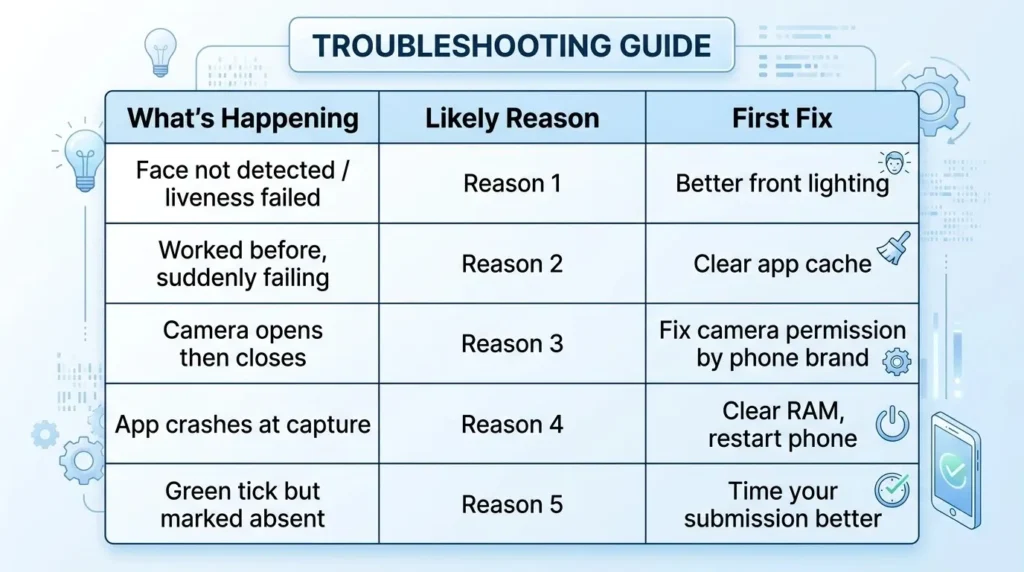
Quick Reference — Reason to Fix Summary
| What’s Happening | Likely Reason | First Fix |
|---|---|---|
| Face not detected / liveness failed | Reason 1 | Better front lighting |
| Worked before, suddenly failing | Reason 2 | Clear app cache |
| Camera opens then closes | Reason 3 | Fix camera permission by phone brand |
| App crashes at capture | Reason 4 | Clear RAM, restart phone |
| Green tick but marked absent | Reason 5 | Time your submission better |