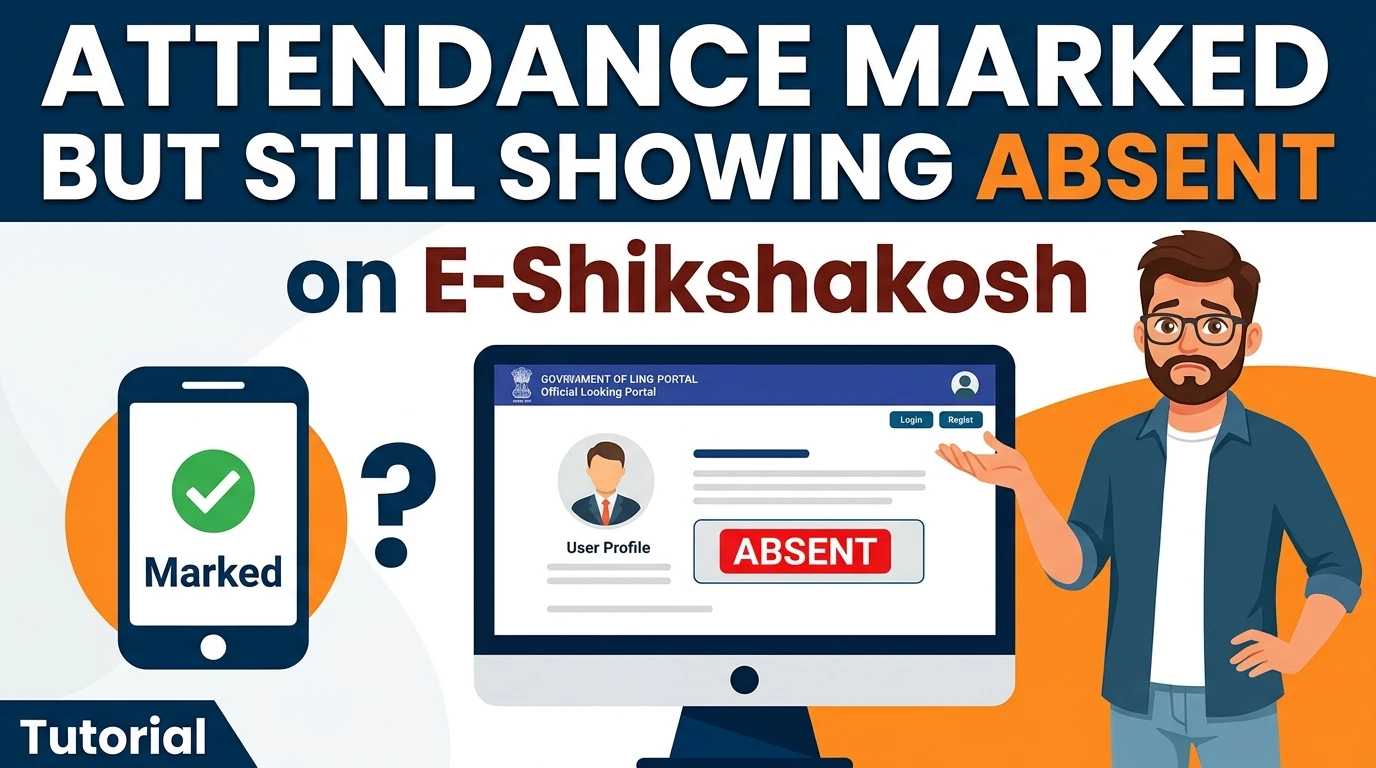
You marked your attendance. The app showed the green tick or the confirmation screen. You walked out of school assuming the day was recorded. Then — your HM tells you the system shows you absent. Or you check the portal yourself and your name sits under “Absent” for that date.
This is not a random glitch. It happens for specific, identifiable reasons. And depending on which reason applies to your situation, the fix is different. Treating them all as “app problem” and simply reinstalling solves nothing.
The Core Issue: “Marked” Does Not Always Mean “Recorded”
This is the part most teachers don’t realize. When you tap “Mark Attendance” on the E-Shikshakosh app, the app does two things in sequence:
- It captures your selfie, GPS coordinates, and timestamp.
- It attempts to upload that data to the BEPC server.
Step 1 happens locally on your phone. Step 2 requires a working internet connection and server acceptance. If Step 2 fails for any reason — even silently — the app may still show a success-looking screen on your side. But your attendance is sitting unsynced in your phone’s local storage, not on the government server. The portal shows you absent because the server never received anything. This distinction — between “captured” and “submitted” — is where almost all “marked but absent” cases originate.
Reason 1: Offline Data Was Never Synced
If you were in an area with weak internet when you marked attendance, the app saves the data locally and shows you a message like “Data saved. Sync when internet is available.” Many teachers see this, close the app, and forget.
The problem: the data does not sync automatically in the background unless you actively open the app and upload it. And there is a hard deadline — if the data is not synced to the BEPC server by 8:00 PM on the same day, the system finalizes the attendance record for that date and marks you absent.
How to check if this is your situation:
Open the E-Shikshakosh app. Look for the “Upload Saved Data” or “Sync” section. If there is attendance data sitting there from a past date, it means it was never pushed to the server.
What you can do:
- If the date is today and it is before 8:00 PM, connect to the internet immediately and tap “Sync All.” Confirm the upload completes — do not close the app mid-upload.
- If the date has already passed and the sync window is closed, you cannot self-upload that data anymore. You need to move to the correction path explained below.
Reason 2: Attendance Was Captured but Rejected by the Server
Sometimes the app shows a confirmation, but the server silently rejects the submission. This happens when:
- The selfie liveness check failed — the app’s AI detected the photo as non-live (too dark, blurry, partially covered face, or face not centered). The app may still show a screen without clearly flagging the failure.
- The GPS coordinates fell outside the school’s geofence — even if you were physically inside the school, if your phone’s GPS placed you outside the school’s registered boundary radius, the server rejects the attendance.
- The timestamp did not fall within the allowed window — E-Shikshakosh has school-specific time windows for attendance marking. If you marked outside that window (even by a few minutes), the entry may be rejected.
How to identify server rejection:
Go to the portal — eshikshakosh.bihar.gov.in — log in with your Teacher ID, and navigate to the Attendance section. Look at the status for the specific date. If it shows “Absent” with no pending or submitted record at all, the server either never received the data or rejected it.
If there is a “Pending” or “Processing” status, that is a different situation — the data arrived but is under verification delay (see Reason 3).
Reason 3: Server-Side Processing Delay
During peak hours — especially between 9:00 AM and 11:00 AM when thousands of Bihar teachers mark attendance simultaneously — the BEPC server sometimes takes several hours to process and reflect submitted attendance. Your data is on the server, but the portal hasn’t updated the display yet.
This is the one case where waiting is the correct action.
- How long to wait: Give it until the end of the school day. If by 5:00 PM the portal still shows absent for a date you successfully synced, it has moved beyond a processing delay and is a real recording problem.
- Verification step: If you synced successfully, the app should show no pending data in the “Upload Saved Data” section. An empty queue combined with a portal showing absent confirms the server received it but has not yet reflected it — or there is a mismatch in the data.
Reason 4: The HM Dashboard Is Showing Outdated Data
Your Headmaster may be looking at the school’s attendance summary before the server has refreshed. The HM dashboard does not update in real time — it pulls data at set intervals. If your HM checks immediately after attendance windows close, the data may not have populated yet.
Ask your HM to refresh the attendance report for your specific date rather than relying on the summary view. This has resolved many “you were absent” conversations that turned out to be premature checks on the HM’s end.
How to Verify Your Attendance Was Actually Submitted (Not Just “Marked”)
Before going to your HM or filing any complaint, do this check yourself:
- Log in to the portal at
eshikshakosh.bihar.gov.inwith your Teacher ID. - Go to the Attendance module.
- Check the specific date in question.
- Look at the status column — Present, Absent, Pending, or Rejected.
- If the status is Absent with no submission record, the data never reached the server — sync failure or rejection.
- If the status is Pending, the data is in the system but awaiting processing — wait or escalate depending on how old the date is.
- If the status shows Present but your HM is saying you are absent, there may be a report filter issue on the HM’s end — show them your portal view directly.
When the Correction Is Not in Your Hands
If the sync window has passed and the portal firmly shows you absent for a date you were physically present, you need the official correction path. This cannot be done through the app.
Inform your Headmaster immediately. The HM has access to attendance correction tools at the school admin level. They can submit a correction request on your behalf within the school’s administration panel.
The HM logs into the School Dashboard and navigates to the Attendance module. There is an option to flag a date for correction or submit a manual override request with supporting documentation.
Supporting evidence matters. If a correction request is submitted without documentation, it will likely be rejected by the BEO. The following are accepted as supporting evidence:
- Screenshot of the app’s sync confirmation from that date (if you have it)
- CCTV footage or school register entry showing your physical presence
- A written statement from the HM confirming your presence
The request moves to the Block Education Officer (BEO) for approval. BEO approval is required for any attendance correction after the submission window has closed. The turnaround is typically 3–7 working days.
If the BEO rejects or delays, the teacher can file a formal grievance through the SHAKTI portal via the Grievance module on their E-Shikshakosh dashboard. Select the category related to attendance correction, attach your evidence, and note the SHAKTI Ticket ID for follow-up.
What Damages Your Case If You Wait Too Long
Bihar’s attendance correction system has implicit time limits. While no official cutoff is published for correction requests, corrections older than 30 days face significantly higher resistance at the BEO level and are far less likely to be approved without strong documentation.
More practically — if your salary is being calculated on attendance data and the absent record is not corrected before payroll processing begins for that month, your salary may be affected. Salary recalculation after the fact is a separate, slower process. Act on a wrongly recorded absence within the same week wherever possible.
Do you know why your E-Shikshakosh salary got deducted in 2026?
Preventing This From Happening Again
Since most of these problems trace back to the sync step being missed or the GPS reading being off, two habits eliminate most future occurrences:
After marking attendance, always check the app’s sync queue. If “Upload Saved Data” shows anything pending, stay connected to the internet until the sync completes and the queue clears. Do not treat the attendance confirmation screen as final.
Before marking attendance, open Google Maps briefly. Walk a few steps and confirm the blue location dot is accurate and stable. If the dot has a large uncertainty circle around it, your GPS is not locked yet. Wait 30–60 seconds in open air before opening the E-Shikshakosh app to mark attendance.
Keep screenshots on the days you mark attendance. A screenshot of the app’s sync confirmation with the timestamp visible takes five seconds and gives you evidence if the portal later shows absent.